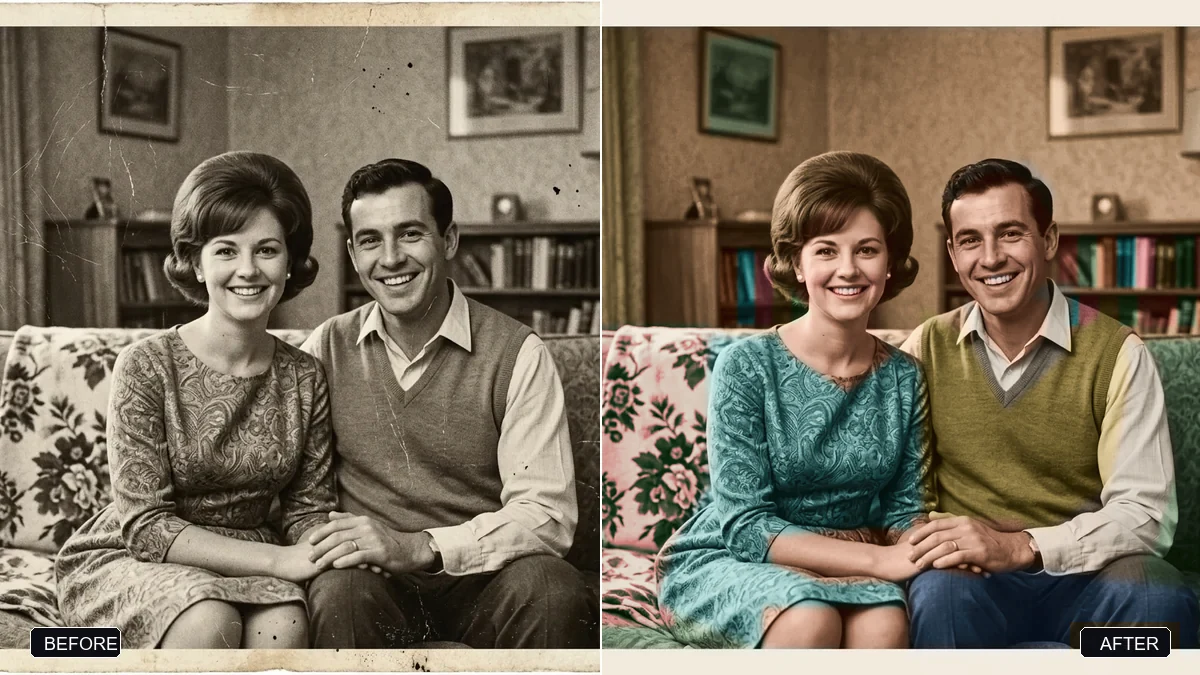
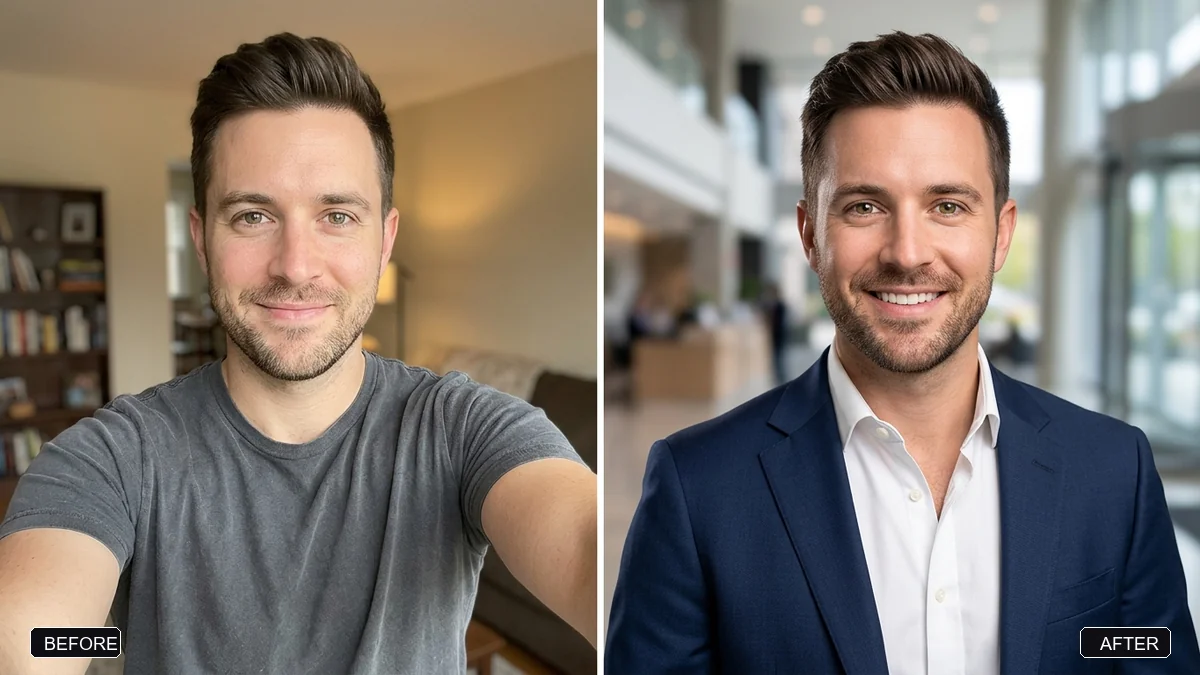
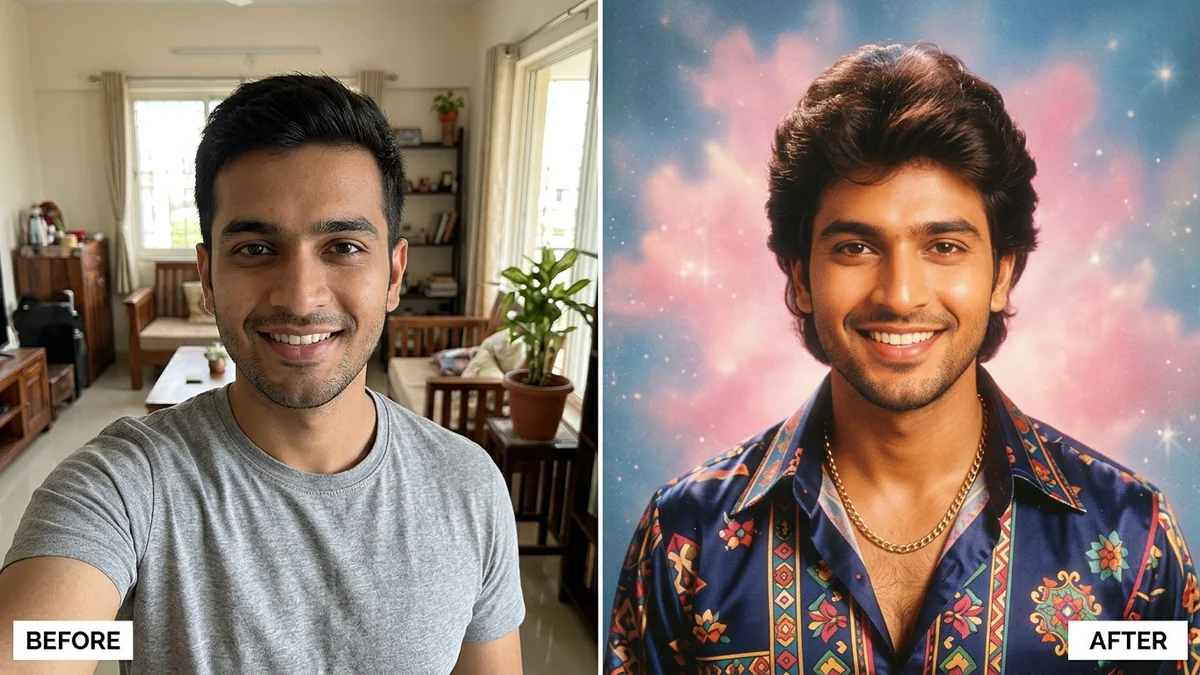
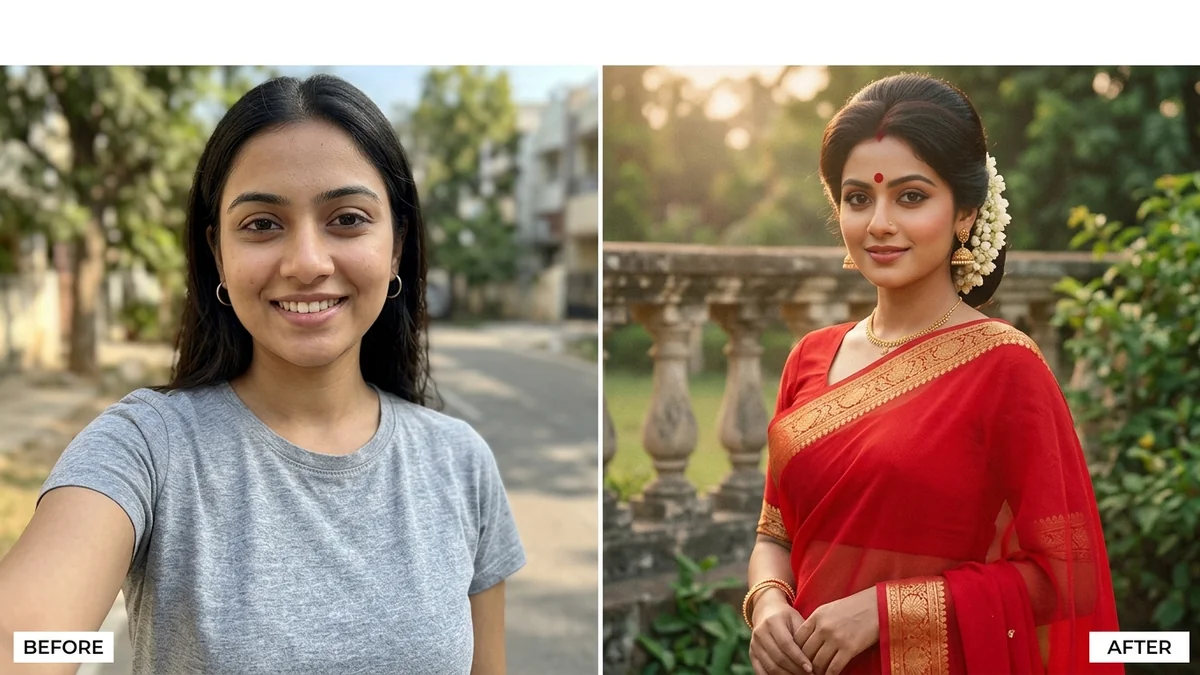
Photo edit prompt
Rescue an underexposed concert photo
Rescue an underexposed concert photo: a free, copy-paste prompt for Gemini and ChatGPT. Upload your photo, paste the prompt, and fill in any [BRACKETED] fields.
The prompt
This concert photo is too dark and noisy. Lift the shadows to reveal the performer's face and the stage, reduce noise, sharpen detail and keep the coloured stage lights vivid but natural.

Do not change the performer, instruments or crowd. Extra instructions: [ANY DETAIL TO KEEP OR AVOID].
Pro tip: Keep the stage colours moody; do not over-brighten it to daylight.
How to use this prompt
- Open Gemini and start a new chat.
- Upload your photo (a clear, front-facing one works best).
- Paste the prompt and replace any [BRACKETED] fields with your own details.
- Send it. If something is off, regenerate or change one detail at a time.
Prompt at a glance
- Category
- Photo edit
- Works with
- Gemini · ChatGPT
- Length
- 48 words
- Fields to fill in
- ANY DETAIL TO KEEP OR AVOID
- Last updated
Frequently asked questions
Which AI tools work with this prompt?
It is written for Gemini and ChatGPT. Both can edit a photo you upload.
What do I need to fill in?
Replace the field before you send it: ANY DETAIL TO KEEP OR AVOID. Each field shows an example in the prompt.
Will the AI change my face?
The prompt tells the AI to keep faces and identities the same, but results vary between runs. If a face drifts, regenerate or reply "keep the face identical to the original".
Is my photo uploaded to PromptUp?
No. PromptUp only gives you the text of the prompt. You upload your photo directly to the AI tool you choose, under that tool's own privacy terms.